While configuring Coveo search on my local development environment using Docker, something got my attention on Coveo’s diagnosis page(<<Sitecore CM Host>>/sitecore modules/Web/Coveo/Admin/CoveoDiagnosticPage.aspx).
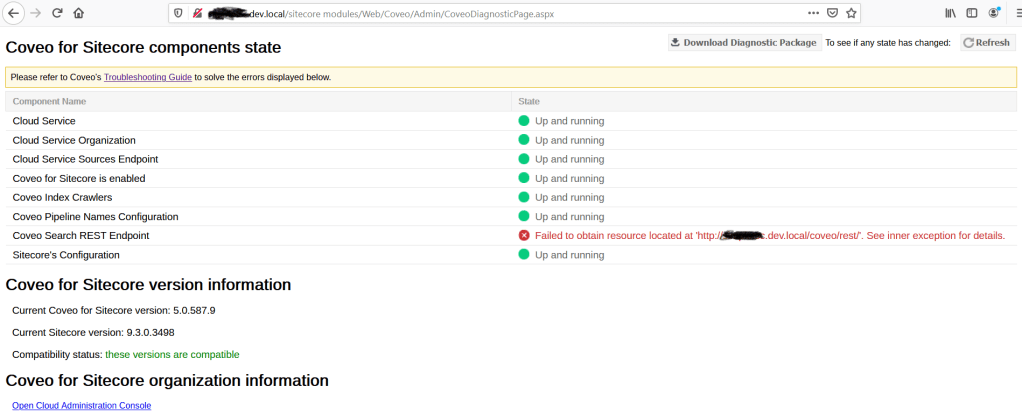
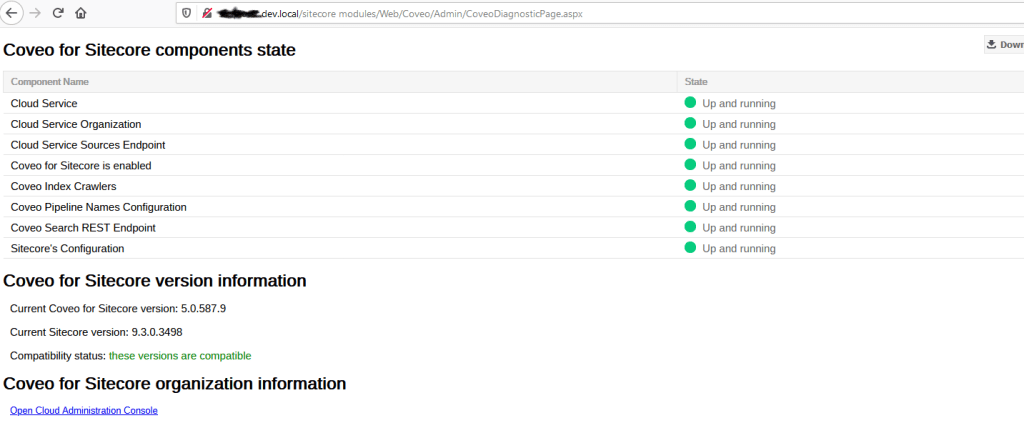
This page has all the green ticks except for the one. This is Coveo Search REST Endpoint. See image below for more details.
Coveo Diagnostic Page REST API Error on Docker
As usually, I copied the API end point URL and hit in the Browser and it serve the request with no error. It is HTTP-200 response with valid JSON result.
The error in the log file also not giving any lead either.
Coveo.SearchProvider.Applications.BaseVerifier.VerifyComponent(:0) ERROR StateVerifier has encountered an error while verifying the component "Coveo Search REST Endpoint".<br>Exception: Coveo.SearchProvider.Applications.StateVerifierException<br>Message: Failed to obtain resource located at 'http://sicore930.dev.local/coveo/rest/'. See inner exception for details.<br>Source: Coveo.SearchProvider.Applications<br>at Coveo.SearchProvider.Applications.CommonStateVerifier.TryPingRestEndpoint(String p_Endpoint)<br>at Coveo.SearchProvider.Applications.CommonStateVerifier.<>c__DisplayClass11_0.b__0()<br>at Coveo.SearchProvider.Applications.BaseVerifier.VerifyComponent(Func`1 p_VerifyMethod, String p_ComponentName)
I opened docker powershell command for the cm container and tried to request the host from within container.
Now things are little clear to me. The Coveo diagnosis page is using current host to make REST API request from IIS server running on the container. The container does not have host file entry to reseolve the host url.
So now, I started searching how to make entry in container’s host file??? I was sure, I am not the first person who wanted this kind of stuff.
Following command has does the trick. but for that we need to first fire up the command prompt of the cm container.
While setting my local environment for development on Sitecore 9.3 using docker, I came across below issue.
Docker SQL Connection Issue
[Win32Exception (0x80004005): The network path was not found]

[SqlException (0x80131904): A network-related or instance-specific error occurred while establishing a connection to SQL Server. The server was not found or was not accessible. Verify that the instance name is correct and that SQL Server is configured to allow remote connections. (provider: Named Pipes Provider, error: 40 - Could not open a connection to SQL Server)]
   System.Data.ProviderBase.DbConnectionPool.TryGetConnection(DbConnection owningObject, UInt32 waitForMultipleObjectsTimeout, Boolean allowCreate, Boolean onlyOneCheckConnection, DbConnectionOptions userOptions, DbConnectionInternal& connection) +1341
   System.Data.ProviderBase.DbConnectionPool.TryGetConnection(DbConnection owningObject, TaskCompletionSource`1 retry, DbConnectionOptions userOptions, DbConnectionInternal& connection) +159
   System.Data.ProviderBase.DbConnectionFactory.TryGetConnection(DbConnection owningConnection, TaskCompletionSource`1 retry, DbConnectionOptions userOptions, DbConnectionInternal oldConnection, DbConnectionInternal& connection) +382
   System.Data.ProviderBase.DbConnectionInternal.TryOpenConnectionInternal(DbConnection outerConnection, DbConnectionFactory connectionFactory, TaskCompletionSource`1 retry, DbConnectionOptions userOptions) +307
   System.Data.SqlClient.SqlConnection.TryOpenInner(TaskCompletionSource`1 retry) +198
   System.Data.SqlClient.SqlConnection.TryOpen(TaskCompletionSource`1 retry) +422
   System.Data.SqlClient.SqlConnection.Open() +199
   Sitecore.Data.DataProviders.Sql.DataProviderCommand..ctor(IDbCommand command, DataProviderTransaction transaction, Boolean openConnection) +113
   Sitecore.Data.DataProviders.Sql.<>c__DisplayClass26_0.<CreateCommand>b__0() +48
   Sitecore.Data.DataProviders.NullRetryer.Execute(Func`1 action, Action recover) +293
   Sitecore.Data.DataProviders.Sql.<>c__DisplayClass29_0.<CreateReader>b__0() +30
   Sitecore.Data.DataProviders.NullRetryer.Execute(Func`1 action, Action recover) +293
   Sitecore.Data.DataProviders.Sql.SqlDataApi.CreateReader(String sql, Object[] parameters) +281
   Sitecore.Data.DataProviders.Sql.SqlDataProvider.GetContentLanguages() +169
   Sitecore.Data.DataProviders.Sql.SqlDataProvider.LoadLanguages() +133
   Sitecore.Data.DataProviders.Sql.SqlDataProvider.GetLanguages() +49
   Sitecore.Data.SqlServer.SqlServerDataProvider.ExecutePreLoadItemDefinitionSql(String sql, Object[] parameters, SafeDictionary`2 prefetchData) +52
   Sitecore.Data.DataProviders.Retryer.ExecuteNoResult(Action action, Action recover) +539
   Sitecore.Data.SqlServer.SqlServerDataProvider.LoadInitialItemDefinitions(String condition, Object[] parameters, SafeDictionary`2 prefetchData) +237
   Sitecore.Data.DataProviders.Sql.SqlDataProvider.EnsureInitialPrefetch() +333
   Sitecore.Data.DataProviders.Sql.SqlDataProvider.GetPrefetchData(ID itemId) +62
   Unicorn.Data.DataProvider.UnicornSqlServerDataProvider.GetItemDefinition(ID itemId, CallContext context) +242
   Sitecore.Data.DataProviders.DataProvider.GetItemDefinition(ID itemID, CallContext context, DataProviderCollection providers) +156
   Sitecore.Data.DataSource.GetItemInformation(ID itemID) +88
   Sitecore.Data.DataSource.GetItemData(ID itemID, Language language, Version version) +32
   Sitecore.Data.Engines.TemplateEngine.GetdefaultSectionOrder() +118
   Sitecore.Data.Engines.TemplateEngine.InternalGetTemplates() +486
   Sitecore.Data.Engines.TemplateEngine.GetTemplate(ID templateId) +184
   Sitecore.XA.Foundation.SitecoreExtensions.Extensions.DatabaseExtensions.GetContentItemsOfTemplate(Database database, ID templateId) +126
   Sitecore.XA.Foundation.Multisite.SiteResolvers.EnvironmentSitesResolver.ResolveAllSites(Database database) +63
   Sitecore.XA.Foundation.Multisite.Providers.SxaSiteProvider.GetSiteList() +162
   Sitecore.XA.Foundation.Multisite.Providers.SxaSiteProvider.InitializeSites() +105
   Sitecore.XA.Foundation.Multisite.Providers.SxaSiteProvider.GetSites() +18
   System.Linq.<SelectManyIterator>d__17`2.MoveNext() +265
   Sitecore.Sites.SiteCollection.AddRange(IEnumerable`1 sites) +221
   Sitecore.Sites.SitecoreSiteProvider.GetSites() +258
   Sitecore.Sites.DefaultSiteContextFactory.GetSites() +253
   Sitecore.XA.Foundation.Multisite.SiteInfoResolver.get_Sites() +60
   Sitecore.XA.Foundation.Multisite.Pipelines.Initialize.InitSiteManager.Process(PipelineArgs args) +85
   (Object , Object ) +9
   Sitecore.Pipelines.CorePipeline.Run(PipelineArgs args) +490
   Sitecore.Pipelines.DefaultCorePipelineManager.Run(String pipelineName, PipelineArgs args, String pipelineDomain, Boolean failIfNotExists) +236
   Sitecore.Pipelines.DefaultCorePipelineManager.Run(String pipelineName, PipelineArgs args, String pipelineDomain) +22
   Sitecore.Nexus.Web.HttpModule.Application_Start() +220
   Sitecore.Nexus.Web.HttpModule.Init(HttpApplication app) +1165
   System.Web.HttpApplication.RegisterEventSubscriptionsWithIIS(IntPtr appContext, HttpContext context, MethodInfo[] handlers) +584
   System.Web.HttpApplication.InitSpecial(HttpApplicationState state, MethodInfo[] handlers, IntPtr appContext, HttpContext context) +168
   System.Web.HttpApplicationFactory.GetSpecialApplicationInstance(IntPtr appContext, HttpContext context) +277
   System.Web.Hosting.PipelineRuntime.InitializeApplication(IntPtr appContext) +369

[HttpException (0x80004005): A network-related or instance-specific error occurred while establishing a connection to SQL Server. The server was not found or was not accessible. Verify that the instance name is correct and that SQL Server is configured to allow remote connections. (provider: Named Pipes Provider, error: 40 - Could not open a connection to SQL Server)]
   System.Web.HttpRuntime.FirstRequestInit(HttpContext context) +532
   System.Web.HttpRuntime.EnsureFirstRequestInit(HttpContext context) +111
   System.Web.HttpRuntime.ProcessRequestNotificationPrivate(IIS7WorkerRequest wr, HttpContext context) +724
The error speaks itself, that the CM and/or CD was not able to connect to underlying SQL server. SO, I immediately opens the SSMS and try to connect to my SQL server running as container on my local and I am successfully able to connect both using IP address as well as using alias(in my case it’s sql).
So what’s the issue??? When I am able to connect to SQL server running in container using outside of the Docker created network than why my CM and/or CD instance is not able to connect to it within the same network???
I check inward and outward binding ports setting in docker-compose.yml file for SQL service. Double check connection strings for server name, user name and password and that all looks correct.
Thanks to one of my colleague, who points out my docker-compose file was missing hostname for SQL server service.
I have added them to my docker-compose.yml for SQL, SOLR and XCONNECT and happy days.
This is going to be a short blog for fixing issue I came across while working on custom pipeline creation and execution for Sitecore’s Data Exchange Framework(DEF or DxF).
The issue
While the Pipeline Batch item is selected, buttons on DATA EXCHANGE toolbar at top does not behave how they should.
Immediately after selecting pipeline item, I noticed all buttons in ribbon is visible and clickable. Secondly, clicking on Run Pipeline Batch Button does not works. I was neither starting execution of pipeline nor displaying any visible error messages. See below image for more details:
The fix
I started investigation and collecting events what could have done the damage. Found that before last deployment it was behaving the way it should be. Huuummm… that’s good hint, isn’t it? The last release just deployed files to CMS server. This is soothing to my ears as investment scope is drastically reduced to files. The content automatically gone out of equation.
To fix this, I tried install DEF SDK package first with just deploying file artifacts and skipping any content installation.
Unfortunately, that does not work ….!!! 😦
Next best bet is obvious and try to re-install the DEF framework package with deploying files only.
And that does the trick ….!!!! (Dance)
Update:
The file \App_Config\Sitecore\DataExchange\Sitecore.DataExchange.Local.config was missing. Placing this file from Package has actually fixed the issue.
Happy Data Sync and import using Sitecore Data Exchange Framework. 🙂
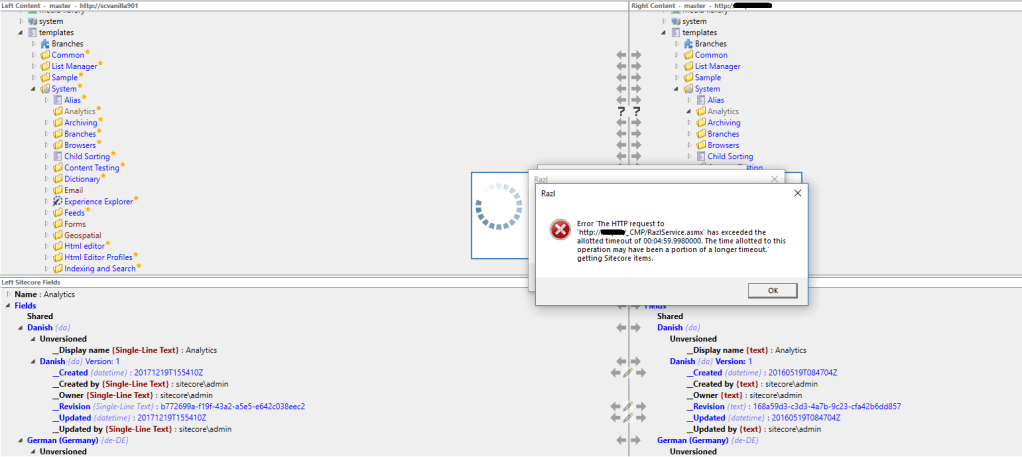
While using Razl syncing couple of large content sub-trees under Sitecore this morning, it has prompted for below error after progressing for while.
Error 'The HTTP request to 'http://xxx.xxx/_CMP/RazlService.asmx' has exceeded the allotted timeout of 00:04:59.9990000. The time allotted to this operation may have been a portion of a longer timeout.' getting Sitecore items.
The fix for above issue is to increase timeout period for the http request to classic web service. After applying following fix, it has started working as expected.
Navigate to the root folder of the website mentioned in above error message
navigate to _CMP folder and open web.config file for editing
Add following line to the web.config file under <system.web> node
So far in Part – 1 and Part – 2 of this series, the Sitecore Publishing Service up & running in Azure PaaS and the Sitecore Publishing module is installed & configured.
This last part will trying to address few additional scenarios with publishing service. Scenarios like, the Sitecore databases are hosted in Azure SQL and Sitecore implementation have multiple publishing targets.
Sitecore database in Azure(Azure SQL)
If publishing service hosted on Azure web app and the databases are also in Azure SQL Database, there are few additional configurations needed for the service to work seamlessly with bigger publishing payload.
Follow below steps to configure publishing service for Azure Environment
Navigate to \configurations\system.webServer\aspNetCore node in wwwRoot\web.config file of publishing service in app service.
replace the arguments attribute with the following
arguments=" --environment azure"
Save the web.config
Stop and start app service
By default Sitecore publishing service is running under the “production” environment and that patches the configurations for production. After above change, service will start with Azure environment and it will patch azure environment specific configurations.
Navigate to wwwroot/config/azure
rename file sc.publishing.sqlazure.connections.xml.example to sc.publishing.sqlazure.connections.xml. Remove .example extension and make sure it has .xml extension.
New publishing target…!!!???
If other than default Internet publishing target is being used in CMS, there are few additional configurations needs to be made. So lets have a look at those.
I am assuming the additional publishing target also linked to additional database other than default web database. If so, the new connection string also needs to be added to publishing service.
New connection string
In this scenario, will take example of new web database in Azure SQL US region and need to add new target to publish content to web database to this US region.
Add new connection string to Publishing service. lets name it web_us
Sitecore.Framework.Publishing.Host configuration setconnectionstring web_us "<US web database connection string>"
/config/sitecore/publishing/sc.publishing.xml
Open above file and follow below steps:
navigate to Settings\Sitecore\Publishing\Services\DefaultConnectionFactory\Options\Connections
Search for the child node Internet, duplicate the whole node along with children. For example, name it InternetUS
Within that InternetUS node navigate to child node ConnectionString and change the value of the node to following to match the name of the connection sting in steps above.
${Sitecore:Publishing:ConnectionStrings:web_us}
Navigate to Settings\Sitecore\Publishing\Services\StoreFactory\Options\Stores\Targets
Search for the child node Internet, duplicate the whole node along with children. For example, name it InternetUS
Change the value of the ConnectionName to InternetUs. This must match the name of the name of the new node name under Settings\Sitecore\Publishing\Services\DefaultConnectionFactory\Options\Connections. Created in one of the step above.
Set the id of new Publishing Target item in Sitecore CMS. For example,
<Id>46FDC9AF-3F00-4D55-BDB8-86ED13F82E00</Id>
Set the value of child node ScDatabase to newly added databsae name. In our example it would be web_us.
This step is optional if the service is not using databases on Azure SQL.
Navigate to Settings\Sitecore\Publishing\Services\DefaultConnectionFactory\options\Connections\
Search for Internet node in child nodes and duplicate that node with name InternetUS along with child nodes
Save File
Bonus
Log level changing for debugging
Nothing can beat detailed level logging while debugging application/service. Default publishing service have two filters one sitecore and anther is default.
For sitecore filter the default log level is set to Information and default log level is set to Warning. See below xml for the same.
One can select log filter level to one of the following:
Trace : The most detailed log messages, may contain sensitive application data. These messages are disabled by default and should never be enabled in a production environment.
Debug : Logs that are used for interactive investigation during development should use the Debug level. These logs should primarily contain information useful for debugging and have no long-term value.
Information : Track the general flow of the application using logs at the Information level. These logs should have value in the long term.
Warning : Warnings should highlight an abnormal or unexpected event in the application flow. This event does not cause the application execution to stop, but can signify sub-optimal performance or a potential problem for the future.
Error : An error should be logged when the current flow of execution is stopped due to a failure. These should indicate a failure in the current activity, not an application-wide failure. These will mainly be unhandled exceptions and recoverable failures.
Critical : A critical log should describe an unrecoverable application or system crash, or a catastrophic failure that requires immediate attention.
To overwrite these default log level filters, use wwwroot/config/sitecore/sc.logging.xml file.
Note
The Development environment mode sets the Sitecore log level filter to Debug. So the service can be run under Development Environment for more detailed logging.
After all these configuration changes restart the publishing service.
Now that Publishing service is deployed, configure and up in Part – 1, the next bit is to install and configure Sitecore publishing service module in Sitecore CM and CD. This part is very simple and strait forward. So lets get started…
The Sitecore publishing module is nothing but Sitecore package and needs to be installed the same way as other Sitecore packages. This package contains all the necessary artifacts for this module to perform it’s job.
Download
The Sitecore Publishing Module can be downloaded from here.
Note
Just check the the version compatibility with Sitecore version where you wanted to implement this publishing service/module. For this you need to navigate to individual release page and check the compatibility detail at start of the page under the main heading.
Install publishing module
To install Sitecore publishing module, one can use OOTB Sitecore installation wizard.
==========================================================
***Important! Copy and save this information***
==========================================================
    BEFORE YOU CLICK NEXT:
    - Ensure you have installed and configured the Sitecore Publishing Service (this module only enables integration with the service)
        Documentation detailing how to install the service is available seperately.

        [Warning] This module will not work without a properly configured service instance.  No items will be able to be published.

    AFTER YOU CLOSE THE WIZARD:
    After the package is installed, follow these steps to complete the Sitecore Publishing Module installation:
    - Configure the service endpoints:
        Add a configuration file which overrides the 'PublishingServiceUrlRoot' setting to point to your service module
        Make sure the address contains a trailing slash
        e.g.
            <?xml version="1.0" encoding="utf-8"?>
            <configuration xmlns:patch="http://www.sitecore.net/xmlconfig/">
              <sitecore>
                <settings>
                  <setting name="PublishingServiceUrlRoot">http://sitecore.publishing/</setting>
                </settings>
              </sitecore>
            </configuration>
    - Configure the Content Delivery Servers:
        Ensure that the following file is in the website 'App_Config/Modules/PublishingService' directory:
            * Sitecore.Publishing.Service.Delivery.config
        Ensure that the following files exist in the website 'bin' directory:
            * Sitecore.Publishing.Service.dll
            * Sitecore.Publishing.Service.Abstractions.dll
            * Sitecore.Publishing.Service.Delivery.dll
Note
Just before installation process starts, installer will prompt the information about configurations and artifacts needed for the Sitecore Module and services to work. As instructed, copy and save that instruction shown in above(From version 3.1.3).
Configure
Once installation of the module is successful, in CM perform following steps:
For CM
Navigate to <website root>/App_Config/Modules/PublishingService folder in CM app service
Make sure the URL is post-fix with forward slash(/) at the end.
For CD
Navigate to <website root>/App_Config/Modules/PublishingService folder in both the CM and CD app services
Copy Sitecore.Publishing.Service.Delivery.config file from CM to above folder in CD
Navigate to <website root>/bin folder in both the CM and CD app services
Copy below library files to CD’s bin folder from CM
Sitecore.Publishing.Service.dll
Sitecore.Publishing.Service.Abstractions.dll
Sitecore.Publishing.Service.Delivery.dll
At this point, the publishing will start working, if there is only one default Internet publishing target is there. The Publishing Module has overwritten few of Sitecore default settings for publishing. So after installation of publishing module, one may notice change in UI for the Publishing. Please read here for more details about visual changes and changes in types of publishing.
The last part -3 will cover some specific configuration for Azure PaaS environment and some advance setting of Sitecore Publishing Service. So stay tuned and enjoy content publishing….!!!
While working on finding solution for slow publishing issue of more than 10,000 items in Azure PaaS, I came across this very powerful add-on Sitecore Publishing Services.
Believe it or not but once it is installed, configured and up, it reduced the publishing time drastically. In our case, publishing of those 10,000 items were taking around 1 hour 30 mins(hhhuuuffff…), merely took 12 mins to publish.(Super duper awesome, isn’t it…??? This makes everyone’s life easy)
Thus, I decided to write blog on whole solution. Blog will become very lengthy if I put everything in one. Thus, splitting it in three parts.
Part 1 will cover installation and basic configuration of publishing service. Part 2 will cover installation of publishing module in CMS. The third part will cover advance configuration of publishing service.
So, lets get started…
Download
You can download both Sitecore publishing service and publishing module from Sitecore’s development site here. It is the designed and developed by Sitecore itself.
Note:
Just check the version compatibility with Sitecore version where you wanted to implement this publishing service/module. see image below for more details. (As I have downloaded first the latest and greatest version 4 at the time I am writing this blog for Sitecore 9.0.1 and later figure out it is not compatible.)
Install publishing service on Azure PaaS
With my current client all their Sitecore implementation is in Azure PaaS. It absolutely makes sense to have this Sitecore Publishing service also setting in Azure PaaS. So, follow below steps to get the publishing services up as app service.
Download the service application as zip file from above link. Select the one which is matching your host architecture type either 32 bit or 64 bit.
Open Kudu – Advance tool for the web app where you want to host publishing service
in Kudu editor open command console by navigate to Debug Console menu option and select CMD
navigate to site root folder using following command
cd site\wwwroot
Drag and drop service zip file to folder view area above console. This will upload the service package to Azure web app.
Once upload completed, run following command on console below the folder view
unzip -o *.zip
Assumption
The site’s wwwroot folder has only one zip file which is recently uploaded publishing service zip file.
Once unzipping of application completed, execute following commands in CMD. This will set connection stings of core, master and web database in publishing service. Going forward, these connection strings will be used for all publishing jobs.
Sitecore.Framework.Publishing.Host configuration setconnectionstring web "<web database connection string>"
Once connection strings are configured for these databases the next step is to upgrade the database schema to required one for Sitecore publishing service
After executing above command the console displays the result of the command. The below screenshot have result with already updates schema for all the databases as I have previously upgraded the schema.
Once above commands are successfully executed, now it is the time to check the status of the publishing service web application.
In the browser open below URL
http://<<azure app service name>>.azurewebsites.net/api/publishing/maintenance/status
Above web api will return following JSON result if all the configurations are correctly set.
{
    "status": 0
}
This are basic steps to deploy Sitecore Publishing services up and running in azure PaaS. In the Part – 2, will cover installation of Sitecore Publishing Module in Sitecore CM/CA with configuration.
I have used this tool before mainly to compare the content between two different databases. For example production CM and Pre-production CM. Today, I came across very new and great features with latest version of Razl offering call tasks and executing task using Razl scripts.
It is offering content sync tasks to be exported in a file(or call script) as xml format and later one can use that to sync data in different environment using Razal script.
For more information about Razl task, read official document here.
The great part of this task is you can cherry pick what you want to sync out of the whole Sitecore content tree. You can go deep up to the field level with your sync task.
once you have a list of tasks ready, you simple can export that as script and execute it with command or create scheduler task to run that script using command and it will do the sync between source and target connections.
Even if you want to go one level further you can automate this sync task post publishing(perhaps not ideal, if frequent publishing is happening) or you can hook it post deploy task in you CD script(if your build contains TDS/unicorn content items).
You must be wondering this is great tool and great way to sync, but what if I am trying to sync big chunk of content items!!!???.
You can use another great feature of Razl called Lightening Mode(obviously you can configure this in you script as well). This mode really boost the performance of sync script if your CoplyAll task is configured to do bulk copying of items.
As far as logging concern, Razl Script mode will output actions as they happen to the command prompt, this output can be written to a text file if required using following command sample.
Tip: Single arrow > will create the file if missing and if exist, overwrite the content of file.
Double arrow >> will create the file if missing and if exist, it will append to the file.
If a log folder has been already configured in the Razl GUI than Script mode will also write to the log file under configured log folder.
This is to share some of the tricks you can use while dealing with multi-sites with Sitecore CMS while designing content solutions.
While dealing with multi-site, we all come across scenario where we want data of some fields to be different per site based on where that item exist. In other words, want to load dynamic data in link types of fields for the data present in that local site.
Of course, the answer is use Sitecore query instead of fixed path. The trick I wanted to share is how to formulate that query.
Lets take one example(I feel if you explain with real life example, people are tend to understand more quickly).
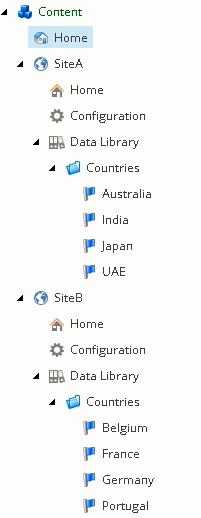
My multi-site content information structure is laid out as follow:
Content
SiteA
Home(All the navigable pages goes here)
Configuration (Master settings for site and features)
Data Library(As name suggested this holds data for the site)
SiteB
Home
Configuration
Data Library
Now, lets assume you have SiteA for Asia-Pacific and SiteB for Europe and there are country data items present under Data Library for both respected sites as shown in picture below.
Now, you want content editor to select only countries present under that site in field called “Supported Countries” for site’s Configuration item.
You can have following Sitecore query as Source of field Supported Countries for the Site Configuration template.
Let’s dive in details about how this query is formulated. Before doing that, please thoroughly go through image below.
The query is divided in the six parts:
Part 1: first part is query keyword, which informs Sitecore that the data source of this field is not just simple item path but complex Sitecore query.
Part 2: The the .(dot) present the current item. These items are highlighted in Red. In our example, it is Configuration item. As we are setting query for the field Supported Countries of template Site Configuration. Configuration item under SiteA and SiteB is actual instance of template.
Part 3: This is the tricky part, form current item we are getting the list of all the ancestor items. For Configuration item under SiteA, the ancestors are SiteA, Content and Sitecore. For SiteB, ancestors to Configuration items are SiteB, Content and Sitecore. These items are highlighted in violet color. Once we get the list of ancestors, we need to filter out the item which is of template type Site(id of this template is {B8313310-198B-4596-9532-7E39BAB33503}.
Part 4: From Filtered Site item, we need to dive in the the sub-tree of Library. To do this we can use the same method of filtering based on template id like we did in part 3 above, but this would be bit costly operation as we need to look for all children underneath site and then filter based on Site Data Library template. Here, I have used fixed path instead, assuming all the sites in this content tree have to have a item called “Data Library”. This is to demonstrate, one can use fixed path query as well with Sitecore query. These are highlighted in green color in content tree.
Part 5: The 5th part is same as part 3, except looking for ancestors, it is looking for children and then filtering the child with the template id {7CF67E0D-A30F-4C48-9247-69DE07821520}. This is to find folder type item of template Country Folder, which are highlighted in Sky-blue color in content tree.
Part 6: The last part is to get the list of all items under the Countries folder filtered in part 5 above. Here, I assuming none other item present under this folder except for template type Country. If you are looking for particulate type of items you can use filters to get those items. These items in content tree are highlighted in grey color as leaf nodes.
Tip: Be cautious while using descendant or //* in field’s datasource query. This is costlier read operations and may hit the performance of field rendering in Content editor.
Enjoy dynamic field data source and Sitecore query …!!!










 Cooking with Sitecore